Trello for Remote Teams: Templates and Best Practices
📅
The modern workplace is evolving, with a growing number of companies embracing remote work models that offer employees increased flexibility and autonomy. However, a recent study found that 67% of remote workers struggle with feelings of isolation, directly impacting team cohesion and productivity.
 While this shift presents numerous advantages, it also introduces unique challenges, particularly in the areas of team collaboration, communication, and project management. Remote teams can easily become disconnected, leading to miscommunication, missed deadlines, and decreased overall productivity.
Fortunately, tools like Trello can effectively bridge these gaps, empowering remote teams to collaborate seamlessly, regardless of their physical location. Trello's visual and intuitive interface makes it an ideal platform for managing projects, streamlining workflows, and fostering enhanced collaboration. In this article, we'll explore the reasons why Trello is a valuable asset for remote teams, providing you with essential templates and best practices to maximize its potential. Prepare to transform the way your remote team operates!
Trello is more than just a project management tool; it's a dynamic hub that promotes transparency, facilitates clear communication, and enhances overall organization. Here's a closer look at why it's a game-changer for remote teams:
Trello's Kanban-style boards offer a clear, visual representation of your projects. Each project is broken down into lists (columns) that represent different stages of the workflow. Tasks are represented as cards that move across these lists, visually tracking progress. This approach allows remote team members to quickly grasp the status of each project, identify potential bottlenecks, and understand their individual responsibilities. The visual nature of Trello makes it easy to understand project progress at a glance, which is especially important when team members aren't physically present for in-person check-ins.
Effective communication is the cornerstone of any successful remote team. Trello facilitates clear communication through its robust commenting system, attachment capabilities, and customizable due date reminders. Team members can easily add comments to cards to provide updates, ask questions, and share valuable feedback. Attachments, such as documents, images, and relevant links, can be added directly to cards, ensuring that all relevant information is readily accessible to everyone. Due dates and reminders help keep everyone on track and prevent critical tasks from falling through the cracks. By making project progress visible to all team members, Trello promotes transparency and accountability within the team.
One of Trello's greatest strengths lies in its inherent adaptability. With a wide range of customization options, including labels, custom fields, and Power-Ups, Trello can be tailored to fit the unique needs of any remote team. Labels can be used to categorize tasks by priority, status, or type. Custom fields allow you to track specific data points relevant to your projects, such as time spent, budget allocation, or client information. Power-Ups, which are integrations with other popular tools, extend Trello's functionality and allow you to seamlessly connect it with the applications your team already utilizes. Whether you're managing a complex software development project, a multifaceted marketing campaign, or a detailed content calendar, Trello can be customized to suit your specific workflow requirements.
Trello is accessible on a variety of devices, including desktops, laptops, tablets, and smartphones, ensuring that team members can stay connected and productive from virtually anywhere. Its seamless integration with other popular tools, such as Slack, Google Drive, and Zoom, further enhances its value for remote teams. By connecting Trello with these tools, you can streamline your workflows, automate repetitive tasks, and improve overall communication efficiency. For example, you can configure Trello to send notifications to Slack whenever a card is moved or a comment is added, ensuring that team members are always kept in the loop and promptly informed of important updates.
To help you get started and maximize your team's efficiency, here are some essential Trello templates designed specifically for remote teams:
While this shift presents numerous advantages, it also introduces unique challenges, particularly in the areas of team collaboration, communication, and project management. Remote teams can easily become disconnected, leading to miscommunication, missed deadlines, and decreased overall productivity.
Fortunately, tools like Trello can effectively bridge these gaps, empowering remote teams to collaborate seamlessly, regardless of their physical location. Trello's visual and intuitive interface makes it an ideal platform for managing projects, streamlining workflows, and fostering enhanced collaboration. In this article, we'll explore the reasons why Trello is a valuable asset for remote teams, providing you with essential templates and best practices to maximize its potential. Prepare to transform the way your remote team operates!
Trello is more than just a project management tool; it's a dynamic hub that promotes transparency, facilitates clear communication, and enhances overall organization. Here's a closer look at why it's a game-changer for remote teams:
Trello's Kanban-style boards offer a clear, visual representation of your projects. Each project is broken down into lists (columns) that represent different stages of the workflow. Tasks are represented as cards that move across these lists, visually tracking progress. This approach allows remote team members to quickly grasp the status of each project, identify potential bottlenecks, and understand their individual responsibilities. The visual nature of Trello makes it easy to understand project progress at a glance, which is especially important when team members aren't physically present for in-person check-ins.
Effective communication is the cornerstone of any successful remote team. Trello facilitates clear communication through its robust commenting system, attachment capabilities, and customizable due date reminders. Team members can easily add comments to cards to provide updates, ask questions, and share valuable feedback. Attachments, such as documents, images, and relevant links, can be added directly to cards, ensuring that all relevant information is readily accessible to everyone. Due dates and reminders help keep everyone on track and prevent critical tasks from falling through the cracks. By making project progress visible to all team members, Trello promotes transparency and accountability within the team.
One of Trello's greatest strengths lies in its inherent adaptability. With a wide range of customization options, including labels, custom fields, and Power-Ups, Trello can be tailored to fit the unique needs of any remote team. Labels can be used to categorize tasks by priority, status, or type. Custom fields allow you to track specific data points relevant to your projects, such as time spent, budget allocation, or client information. Power-Ups, which are integrations with other popular tools, extend Trello's functionality and allow you to seamlessly connect it with the applications your team already utilizes. Whether you're managing a complex software development project, a multifaceted marketing campaign, or a detailed content calendar, Trello can be customized to suit your specific workflow requirements.
Trello is accessible on a variety of devices, including desktops, laptops, tablets, and smartphones, ensuring that team members can stay connected and productive from virtually anywhere. Its seamless integration with other popular tools, such as Slack, Google Drive, and Zoom, further enhances its value for remote teams. By connecting Trello with these tools, you can streamline your workflows, automate repetitive tasks, and improve overall communication efficiency. For example, you can configure Trello to send notifications to Slack whenever a card is moved or a comment is added, ensuring that team members are always kept in the loop and promptly informed of important updates.
To help you get started and maximize your team's efficiency, here are some essential Trello templates designed specifically for remote teams:
 This template is designed to help you manage projects from initiation to completion. Key lists/columns include:
To Do: Tasks that need to be completed. In Progress: Tasks that are currently being actively worked on.
Review: Tasks that are awaiting review or approval. Done: Completed tasks.
Recommended Power-Ups: Calendar, Due Date Reminders.
Example Use Case: Tracking bug fixes and feature requests for version 2.0 of your app.
This template is perfect for planning and scheduling your content creation efforts. Key lists/columns include:
Ideas: Content ideas and potential topics. Draft: Content that is currently being drafted.
Editing: Content that is being edited and proofread. Published: Content that has been successfully published.
Recommended Power-Ups: Google Calendar, Editorial Calendar.
Example Use Case: Planning and scheduling social media posts across multiple platforms for the next quarter.
This template facilitates efficient daily stand-up meetings, even when team members are geographically dispersed. Key lists/columns include:
Yesterday: What you accomplished yesterday. Today: What you plan to accomplish today.
Blockers: Any obstacles or challenges you are currently facing.
This template can be used for asynchronous stand-ups, allowing team members to update their cards at their convenience. It promotes transparency and helps identify potential roadblocks early on, enabling proactive problem-solving.
This template streamlines the onboarding process for new remote team members, ensuring a smooth and efficient integration. Key lists/columns include: Welcome: A welcome message and introductory information.
First Week Tasks: Tasks to be completed during the first week. Training Resources: Links to relevant training materials and documentation.
Important Links: Links to important company resources and tools.
This template ensures a seamless onboarding experience and helps new team members quickly integrate into the team's workflow and culture.
This template helps you create structured and productive meeting agendas, maximizing the value of your team's time. Key lists/columns include: Topics: Topics to be discussed during the meeting.
Discussion Points: Specific points to be covered for each topic. Action Items: Action items assigned to specific team members.
* Decisions: Decisions made during the meeting.
This template keeps meetings focused and efficient, ensuring that all important topics are covered and action items are clearly assigned for follow-up.
To maximize the benefits of Trello for your remote team, consider implementing these best practices:
Establish Clear Communication Guidelines: Define how Trello will be used for communication (e.g., comments, mentions). Encourage regular updates and feedback within Trello to keep everyone informed. Integrate Trello with other communication tools (e.g., Slack) for real-time discussions and quick updates. For example, use "[URGENT]" at the beginning of a comment to indicate immediate attention is needed, or use specific emojis like a checkmark (✅) for approval or a question mark (?) for clarification.
Define Roles and Responsibilities: Assign clear roles and responsibilities for each team member within Trello. Use labels and custom fields to clearly indicate ownership and accountability for specific tasks and projects.
Use Due Dates and Reminders Effectively: Set realistic due dates for tasks and projects, taking into account individual workloads and potential dependencies. Utilize Trello's due date reminders to keep team members on track and prevent missed deadlines. Encourage the use of the Calendar Power-Up for a visual overview of upcoming deadlines.
Leverage Power-Ups for Enhanced Functionality: Explore and utilize relevant Power-Ups to extend Trello's capabilities and integrate it with other tools your team uses regularly. Examples include Slack, Google Drive, Calendar, and Custom Fields.
Regularly Review and Update Boards: Schedule regular reviews of Trello boards to ensure they are up-to-date and accurately reflect the current status of projects. Archive completed tasks and projects to keep boards organized and clutter-free. Encourage team members to provide feedback on the effectiveness of the boards and suggest improvements.
Create a Trello Style Guide: Develop a consistent naming convention for lists, cards, and labels to maintain clarity and consistency across all boards. Define guidelines for using colors and custom fields to ensure uniformity. Ensure all team members are familiar with the style guide and adhere to it consistently.
Take your Trello skills to the next level with these advanced tips and techniques:
This template is designed to help you manage projects from initiation to completion. Key lists/columns include:
To Do: Tasks that need to be completed. In Progress: Tasks that are currently being actively worked on.
Review: Tasks that are awaiting review or approval. Done: Completed tasks.
Recommended Power-Ups: Calendar, Due Date Reminders.
Example Use Case: Tracking bug fixes and feature requests for version 2.0 of your app.
This template is perfect for planning and scheduling your content creation efforts. Key lists/columns include:
Ideas: Content ideas and potential topics. Draft: Content that is currently being drafted.
Editing: Content that is being edited and proofread. Published: Content that has been successfully published.
Recommended Power-Ups: Google Calendar, Editorial Calendar.
Example Use Case: Planning and scheduling social media posts across multiple platforms for the next quarter.
This template facilitates efficient daily stand-up meetings, even when team members are geographically dispersed. Key lists/columns include:
Yesterday: What you accomplished yesterday. Today: What you plan to accomplish today.
Blockers: Any obstacles or challenges you are currently facing.
This template can be used for asynchronous stand-ups, allowing team members to update their cards at their convenience. It promotes transparency and helps identify potential roadblocks early on, enabling proactive problem-solving.
This template streamlines the onboarding process for new remote team members, ensuring a smooth and efficient integration. Key lists/columns include: Welcome: A welcome message and introductory information.
First Week Tasks: Tasks to be completed during the first week. Training Resources: Links to relevant training materials and documentation.
Important Links: Links to important company resources and tools.
This template ensures a seamless onboarding experience and helps new team members quickly integrate into the team's workflow and culture.
This template helps you create structured and productive meeting agendas, maximizing the value of your team's time. Key lists/columns include: Topics: Topics to be discussed during the meeting.
Discussion Points: Specific points to be covered for each topic. Action Items: Action items assigned to specific team members.
* Decisions: Decisions made during the meeting.
This template keeps meetings focused and efficient, ensuring that all important topics are covered and action items are clearly assigned for follow-up.
To maximize the benefits of Trello for your remote team, consider implementing these best practices:
Establish Clear Communication Guidelines: Define how Trello will be used for communication (e.g., comments, mentions). Encourage regular updates and feedback within Trello to keep everyone informed. Integrate Trello with other communication tools (e.g., Slack) for real-time discussions and quick updates. For example, use "[URGENT]" at the beginning of a comment to indicate immediate attention is needed, or use specific emojis like a checkmark (✅) for approval or a question mark (?) for clarification.
Define Roles and Responsibilities: Assign clear roles and responsibilities for each team member within Trello. Use labels and custom fields to clearly indicate ownership and accountability for specific tasks and projects.
Use Due Dates and Reminders Effectively: Set realistic due dates for tasks and projects, taking into account individual workloads and potential dependencies. Utilize Trello's due date reminders to keep team members on track and prevent missed deadlines. Encourage the use of the Calendar Power-Up for a visual overview of upcoming deadlines.
Leverage Power-Ups for Enhanced Functionality: Explore and utilize relevant Power-Ups to extend Trello's capabilities and integrate it with other tools your team uses regularly. Examples include Slack, Google Drive, Calendar, and Custom Fields.
Regularly Review and Update Boards: Schedule regular reviews of Trello boards to ensure they are up-to-date and accurately reflect the current status of projects. Archive completed tasks and projects to keep boards organized and clutter-free. Encourage team members to provide feedback on the effectiveness of the boards and suggest improvements.
Create a Trello Style Guide: Develop a consistent naming convention for lists, cards, and labels to maintain clarity and consistency across all boards. Define guidelines for using colors and custom fields to ensure uniformity. Ensure all team members are familiar with the style guide and adhere to it consistently.
Take your Trello skills to the next level with these advanced tips and techniques:
 Automate Tasks with Butler: Use Trello's built-in automation tool, Butler, to automate repetitive tasks, such as moving cards between lists, adding checklists to new cards, and sending notifications to relevant team members. For example, automatically assign a "High Priority" label to any card with a due date within 24 hours.
Use Custom Fields for Tracking Key Metrics: Create and utilize custom fields to track important data points, such as time spent on specific tasks, budget allocation for projects, and priority level of individual tasks.
Integrate Trello with Reporting Tools: Connect Trello with reporting tools, such as Google Sheets and Power BI, to generate insightful reports and dashboards that track project progress, team performance, and key metrics. For example, track the average time it takes to complete tasks in each stage of your workflow to identify bottlenecks.
Create a Knowledge Base within Trello: Use Trello to create a central repository for important information and resources, such as company policies, training materials, project documentation, and frequently asked questions.
Trello is a powerful platform that can fundamentally transform the way remote teams collaborate and operate. By implementing the templates and best practices discussed in this article, you can significantly improve collaboration, enhance communication, and streamline project management, ultimately leading to increased productivity and greater overall success. As remote work continues to evolve, Trello will undoubtedly play an increasingly vital role in enabling teams to thrive in a distributed environment. Its flexibility and adaptability make it well-positioned to meet the ever-changing needs of the modern remote workforce.
Ready to empower your remote team with Trello and unlock its full potential? Download the templates mentioned in this article and sign up for a free Trello trial today!
We encourage you to share your own Trello tips, strategies, and experiences in the comments section below. Let's learn from each other and collectively build a more collaborative, productive, and successful remote work environment for everyone.
Automate Tasks with Butler: Use Trello's built-in automation tool, Butler, to automate repetitive tasks, such as moving cards between lists, adding checklists to new cards, and sending notifications to relevant team members. For example, automatically assign a "High Priority" label to any card with a due date within 24 hours.
Use Custom Fields for Tracking Key Metrics: Create and utilize custom fields to track important data points, such as time spent on specific tasks, budget allocation for projects, and priority level of individual tasks.
Integrate Trello with Reporting Tools: Connect Trello with reporting tools, such as Google Sheets and Power BI, to generate insightful reports and dashboards that track project progress, team performance, and key metrics. For example, track the average time it takes to complete tasks in each stage of your workflow to identify bottlenecks.
Create a Knowledge Base within Trello: Use Trello to create a central repository for important information and resources, such as company policies, training materials, project documentation, and frequently asked questions.
Trello is a powerful platform that can fundamentally transform the way remote teams collaborate and operate. By implementing the templates and best practices discussed in this article, you can significantly improve collaboration, enhance communication, and streamline project management, ultimately leading to increased productivity and greater overall success. As remote work continues to evolve, Trello will undoubtedly play an increasingly vital role in enabling teams to thrive in a distributed environment. Its flexibility and adaptability make it well-positioned to meet the ever-changing needs of the modern remote workforce.
Ready to empower your remote team with Trello and unlock its full potential? Download the templates mentioned in this article and sign up for a free Trello trial today!
We encourage you to share your own Trello tips, strategies, and experiences in the comments section below. Let's learn from each other and collectively build a more collaborative, productive, and successful remote work environment for everyone.
Image Caption: Efficient collaboration, enhanced by tools like Trello, helps remote teams overcome isolation and boost productivity, ensuring no one is left working alone in the digital field.
Two presenters show the audience a Dell laptop that visualizes Trello templates and helps remote teams collaborate effectively.
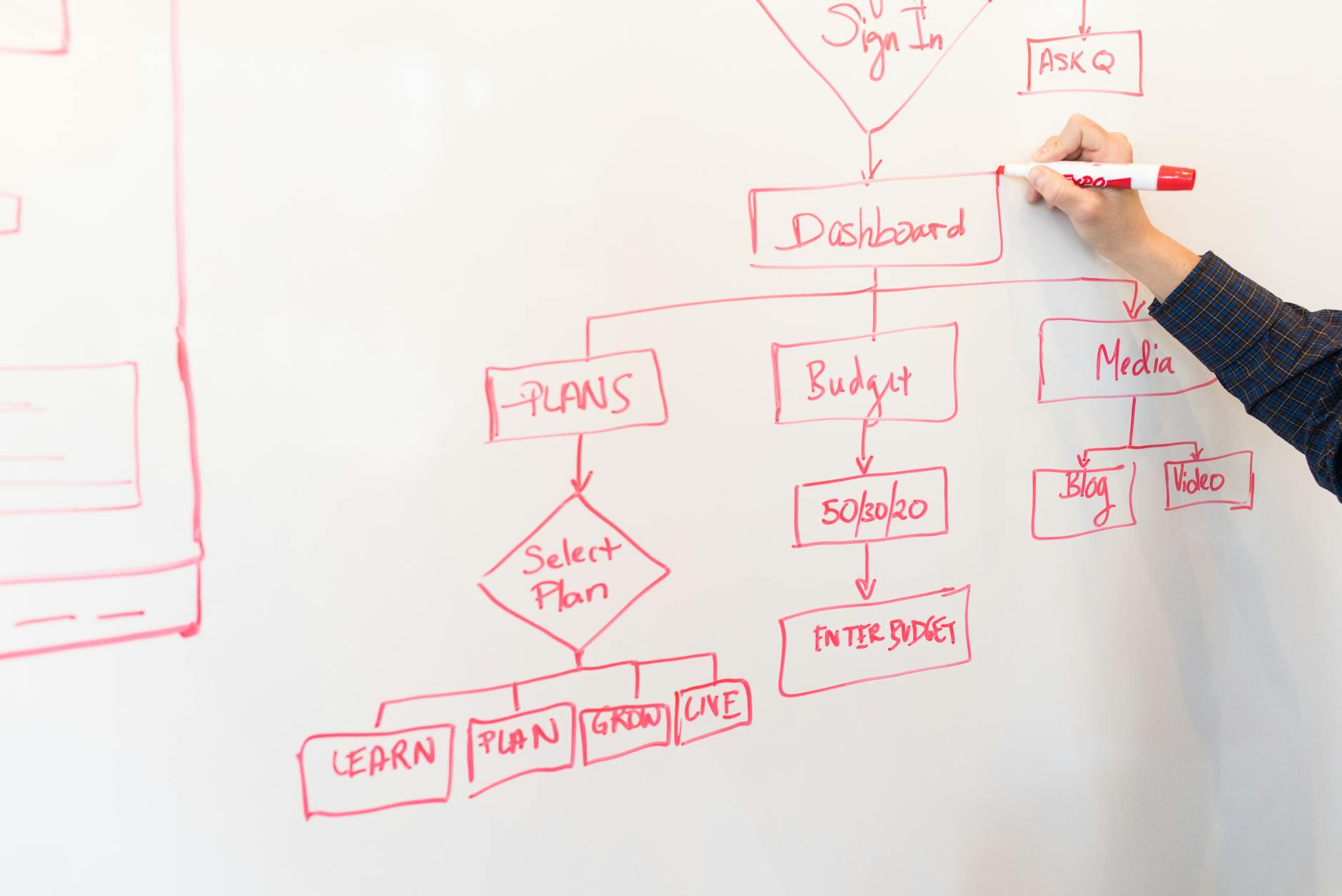
Visualizing project workflows and collaboration through tools like Trello is essential for remote team productivity.